 JetLogix
11 Notes
Notes is your personal notebook, organised like Microsoft OneNote. Your notes are private: nobody else can see them.
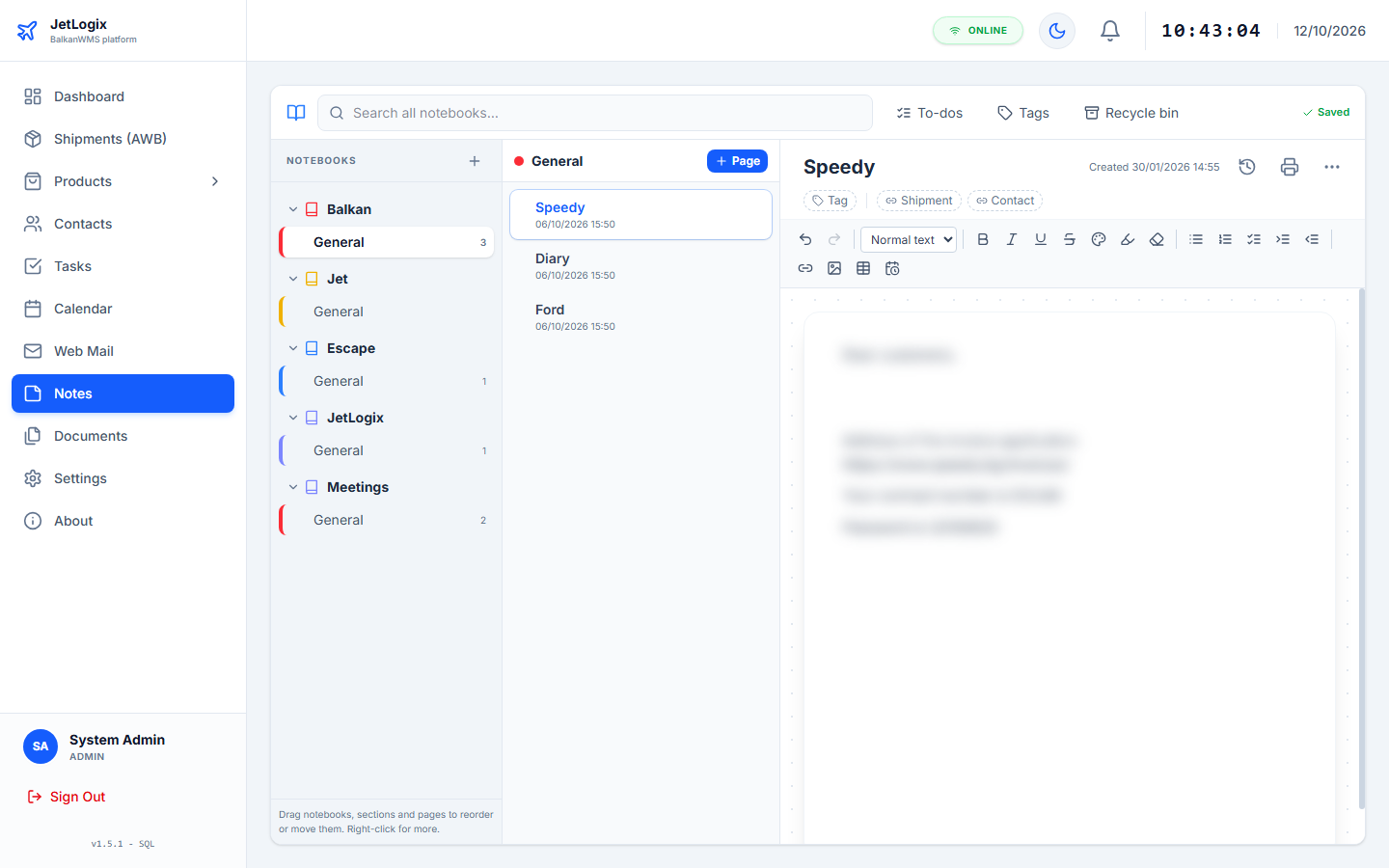
11.1 How notes are organised
| Level | Description |
|---|---|
| Notebook | The largest unit, for example Operations or Personal. |
| Section | A coloured tab inside a notebook, for example Customers or Meetings. |
| Page | A note. |
| Sub-page | A page placed under another page (one level). |
The first notebook, My Notebook with the section General, is created for you.
The screen has three columns: notebooks and sections on the left, the pages of the selected section in the middle, and the page you are writing on the right.
11.2 Notebooks and sections
- Press + next to Notebooks to create a notebook.
- Right-click a notebook for New section, Rename notebook, its colour and Delete notebook.
- Right-click a section for Rename section, Print section / PDF, its colour and Delete section.
- Drag notebooks, sections and pages to change their order or to move them (a section to another notebook, a page to another section).
11.3 Pages
Press + Page and choose a template: Blank page, Meeting notes, Phone call or Daily log.
Open the menu of a page (… or right-click) for:
| Entry | What it does |
|---|---|
| New sub-page / Make sub-page / Promote to page | Creates or changes sub-pages. |
| Move or copy... | Moves or copies the page to another notebook and section. |
| Print / PDF | Prints the page or saves it as PDF. |
| Version history | Shows the earlier versions of the page (section 11.5). |
| Delete (to recycle bin) | Moves the page to the recycle bin. |
11.4 Writing
Type the Page title and write in the page. JetLogix saves automatically after a short pause; the top bar shows Saving..., Saved, or Not saved - check the connection.
The toolbar offers:
- undo and redo;
- Normal text and Heading 1-3;
- bold, italic, underline, strikethrough, text colour, highlight and clear formatting;
- bullet, numbered and to-do lists (
Ctrl+Shift+9for a to-do), indent and outdent; - links, pictures and tables;
- the current date and time.
Ctrl+V. Pictures can be up to 5 MB; large photos are reduced automatically.11.4.1 Tags and links
- Add tags to a page: Important, Question, Idea, Follow up, Waiting, Done or your own tag (Other tag...).
- Link a page to a shipment or a contact with the Shipment and Contact buttons. Click the link to open the shipment or the contact.
11.4.2 From to-do to task
Place the cursor on a to-do line and press Make task: the line becomes a task on the Task Board (chapter 8), and the page shows Task linked. Ticking the to-do in the note or completing the task on the board completes both.
11.5 Version history
Press the history button of a page to see its earlier versions. Select a version to see it, then press Restore this version to bring it back. The current text is kept in the history, so nothing is lost.
Versions are saved automatically (at most one every 10 minutes and always before a large deletion). Up to 50 versions per page are kept for 90 days.
11.6 Search, to-dos, tags and recycle bin
The top bar of Notes offers:
| Button | What it does |
|---|---|
| Search all notebooks... | Searches the titles and the text of all pages. |
| To-dos (N) | All open to-do items of all pages, grouped by page. |
| Tags | All tags; click a tag to see its pages. |
| Recycle bin (N) | Deleted pages, kept for 30 days. Restore a page or Empty recycle bin. |
11.7 Printing
Choose Print / PDF in the menu of a page, or Print section / PDF in the menu of a section. A section is printed with a table of contents and every page on a new sheet. To save a PDF, choose Save as PDF as the printer.