 JetLogix
6 Documents
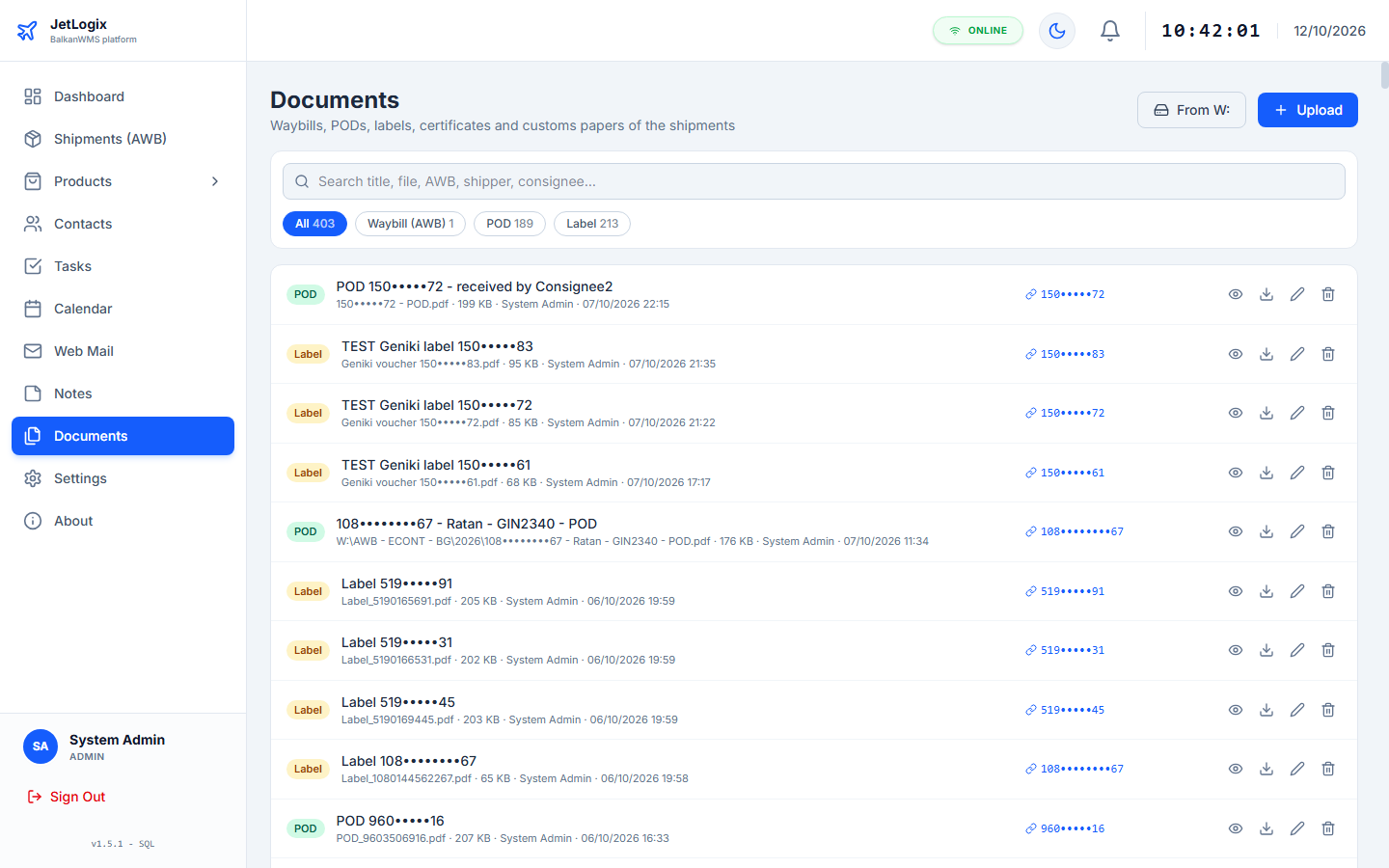
The Documents screen lists all the documents of all shipments in one place: waybills, PODs, labels, certificates and customs papers. Documents can be added here or in the shipment form (section 4.7); both show the same files.
6.1 Finding a document
- Type in Search title, file, AWB, shipper, consignee... to search by title, file name, AWB number, shipper, consignee or reference.
- Click a kind to see only that kind: All, Waybill (AWB), POD, Label, Certificate, Customs, Other. The number next to each kind shows how many documents there are.
Every row shows the kind, the title, the file (or its path on the network folder), the size, who added it and when, and the shipment it belongs to. Click the AWB to open the shipment.
| Button | What it does |
|---|---|
| View | Shows the document inside JetLogix (section 6.4). |
| Download / Open link | Saves the file on your computer, or opens a linked web address. |
| Edit | Changes the title, the kind or the shipment. |
| Delete | Removes the document. |
6.2 Uploading documents
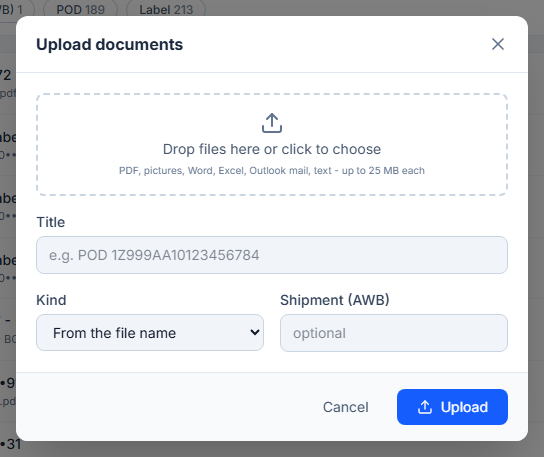
- Press Upload.
- Drag the files onto Drop files here or click to choose, or click the area to choose them.
- Optionally type a Title, for example POD 1Z999AA10123456784.
- Choose the Kind, or leave From the file name to let JetLogix recognise it.
- Type the Shipment (AWB) the document belongs to. JetLogix confirms the shipment (carrier, shipper → consignee) or warns No shipment with this AWB.
- Press Upload.
6.3 The network folder W:
The office network folder W:\ contains the PDF copies of waybills, vouchers and PODs. JetLogix can read it and link its files to shipments, without copying them.
Press From W: (on the Documents screen) or From network folder W: (in a shipment):
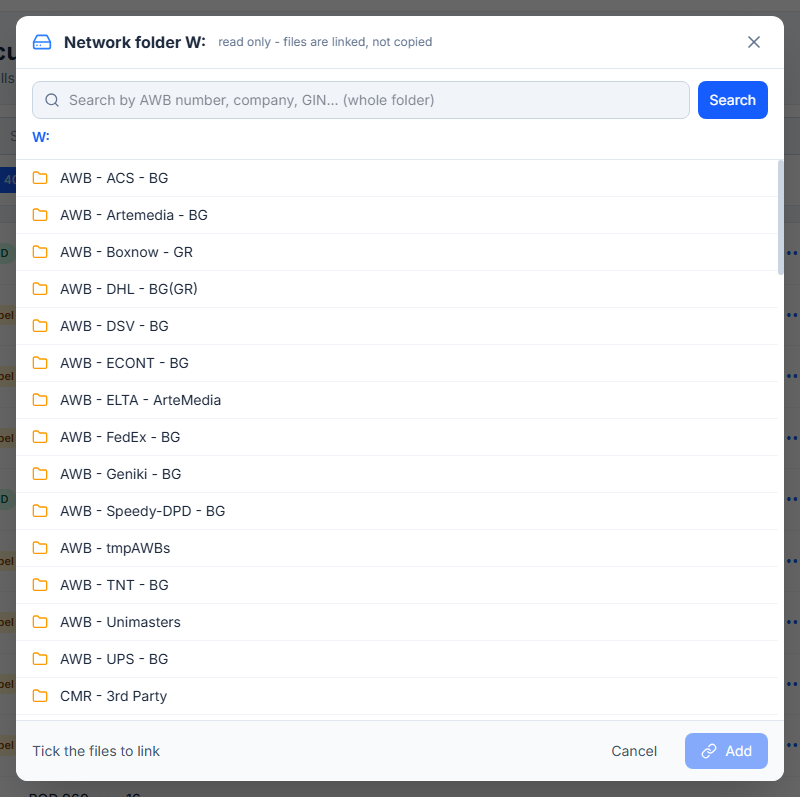
- Type an AWB number, a company or a GIN number in Search by AWB number, company, GIN... and press Search to search the whole folder, or In this folder to search only the folder you are in.
- Or browse the folders: click a folder to open it and use the path at the top to go back.
- Tick the files you want. Files that are already linked are marked.
- Press Link (N) (in a shipment) or Add (on the Documents screen).
W:.6.4 Viewing a document
Press the view button of a document to open it inside JetLogix. PDFs, pictures and text files are shown directly; other files (Word, Excel, Outlook mail) must be downloaded and opened on your computer.
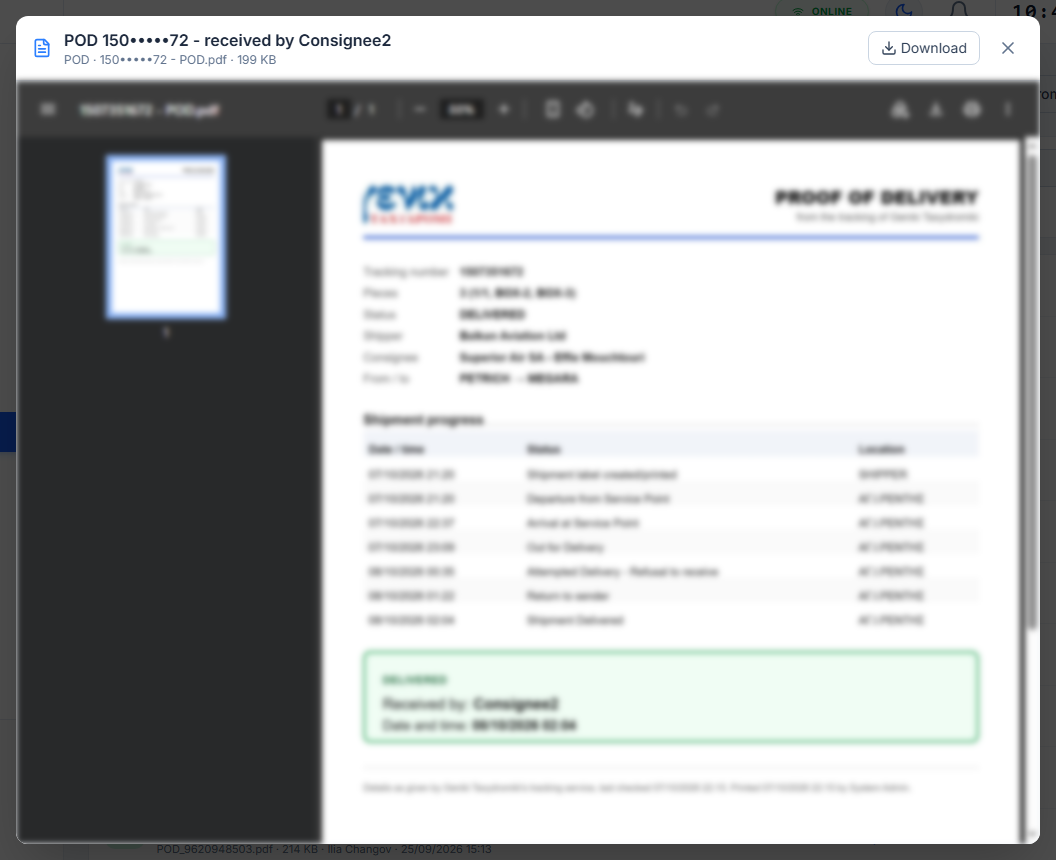
For files on the network folder, the window shows the Windows path with a copy button. Copy the path and paste it into Windows Explorer to open the file from the network folder. Press Esc to close the window.