 JetLogix
2 Getting started
2.1 Signing in
- Open your browser and go to the address of your JetLogix installation, for example
https://group.balkanwms.com. - In Username or Email Address, type your user name or your e-mail address. Upper and lower case letters do not matter.
- In Password, type your password.
- Tick Remember me if you work on your own computer (see below).
- Press Sign In.
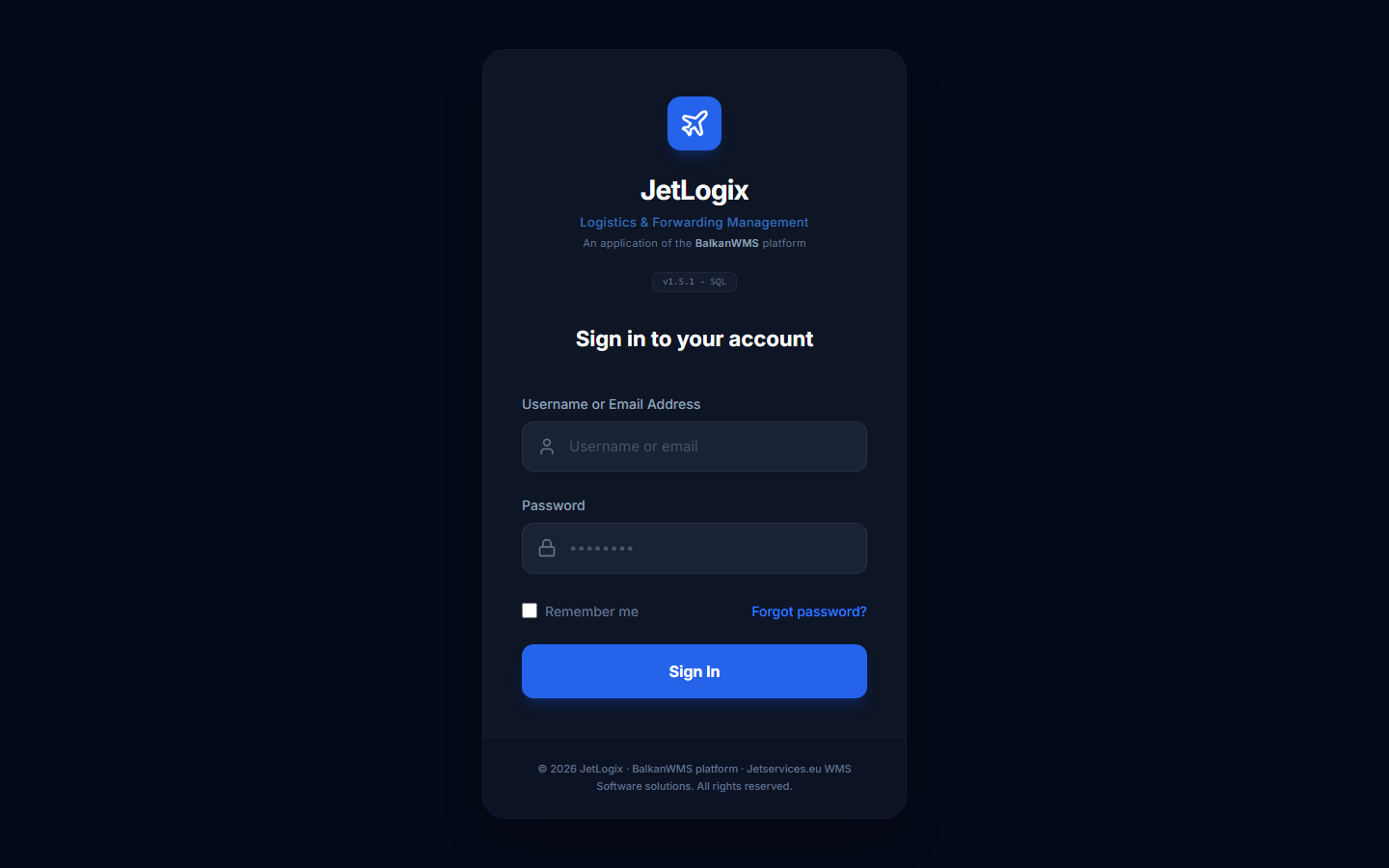
After signing in, JetLogix opens the Dashboard. If you do not have the right to see the Dashboard, the first screen you are allowed to use opens instead.
2.1.1 Remember me
| Remember me | How long you stay signed in |
|---|---|
| Ticked | 30 days. The browser also remembers your user name. |
| Not ticked | Until you have not used the application for 8 hours. |
2.1.2 Forgotten password
There is no self-service password reset. Press Forgot password? to see the instruction: ask your administrator to set a new password for you. The administrator does this in Settings › Users (section 13.3).
2.1.3 Password rules
- A password has at least 8 characters.
- When an administrator changes your password, you are signed out on every computer and must sign in again with the new password.
2.1.4 Too many failed attempts
After 10 wrong passwords for the same account within 15 minutes (or 30 from the same computer), JetLogix shows Too many failed sign-in attempts. Please wait 15 minutes and try again. The account unlocks by itself after the 15 minutes.
2.1.5 When the server cannot be reached
If JetLogix cannot reach its database, the sign-in screen shows an amber box (Database Unavailable or Server Setup Required) and the Sign In button is disabled. Check your network connection (or VPN) and press Retry Connection. If the message stays, inform your administrator.
2.1.6 All licensed users are signed in
The licence of JetLogix sets how many users may be signed in at the same time. Every signed-in user holds one place until signing out, even when the browser is left open all day. When all places are taken, the sign-in screen shows All licensed users are signed in. Someone has to sign out first. with the list of the users who are signed in now.
- If you are one of them yourself (for example you forgot to sign out on another computer), the button Sign out there and sign in here signs out your other session and signs you in here.
- Otherwise ask a colleague to sign out, or ask your administrator: the administrator can always sign in and can sign out a user who is no longer working (section 13.13).
2.1.7 No valid licence
If JetLogix has no valid licence (no licence key yet, a key of another database, or the date of the server is wrong), users see JetLogix has no valid licence. Please ask your administrator. Only the administrator can sign in, to the Licence screen, to enter the key (section 13.13).
2.2 The main screen
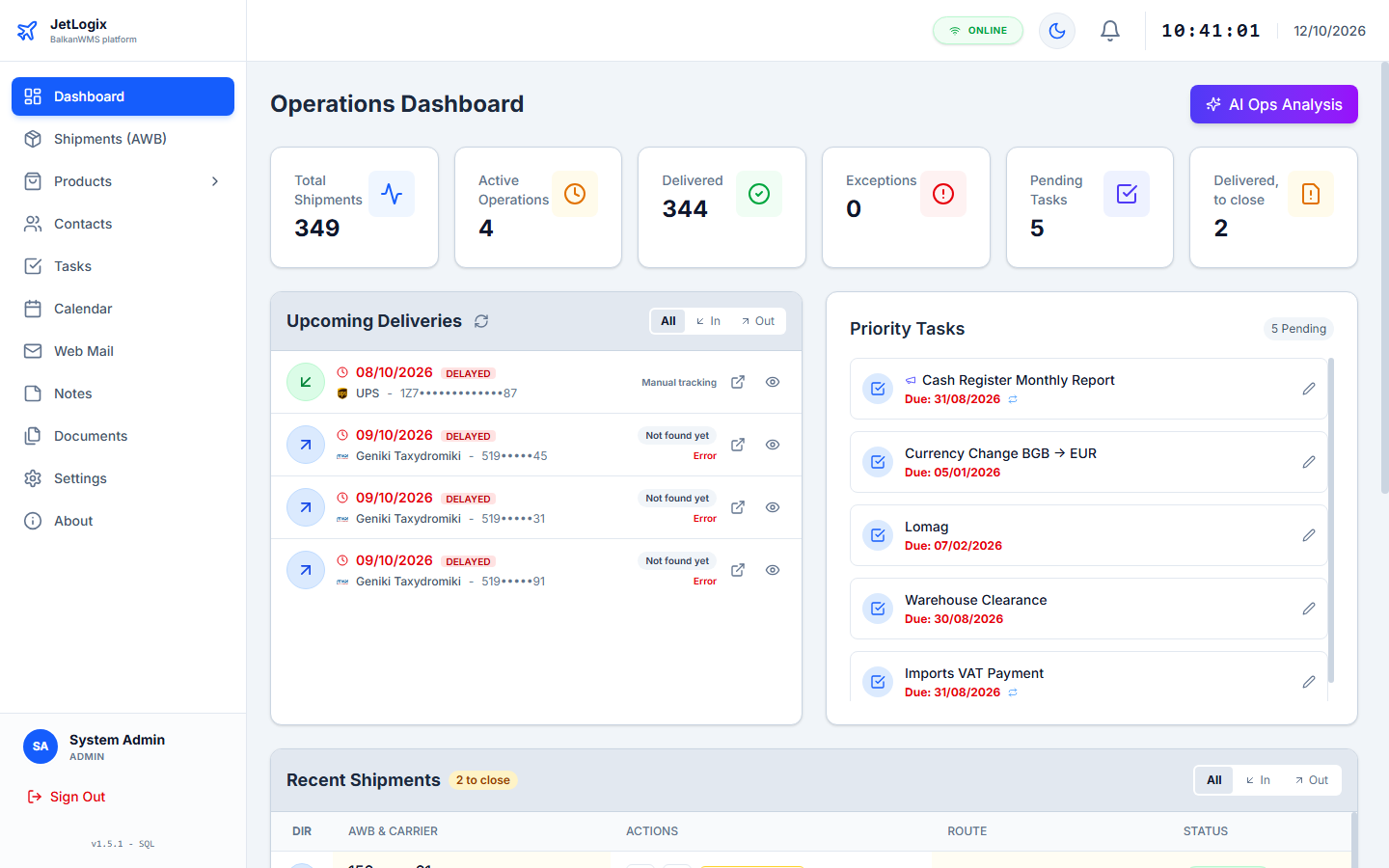
The main screen has three parts:
- The menu on the left. It lists the screens that you are allowed to use. At the bottom it shows your name, your role, the version of JetLogix and the Sign Out button. Click the JetLogix logo at the top to return to the Dashboard at any time.
- The top bar. From left to right: the green ONLINE indicator, the light / dark theme button (moon / sun), the help button (?), the notification bell, and the current time and date.
- The working area, where the selected screen is shown.
The Products entry of the menu is a group: click it to show MSDS - TDS, Brochures and Aircraft.
2.2.1 Light and dark theme
Press the moon / sun button in the top bar to switch between the light and the dark theme. The theme that opens when you sign in is set in your user account by the administrator.
2.3 Help (F1)
Press F1, or the ? button in the top bar, to open the online help of the screen you are working on in a new window. The help is this manual as web pages, in the language of JetLogix, with a table of contents and a search box. It is also available at https://www.balkanwms.com/jetlogix/help/, and the PDF manual at https://www.balkanwms.com/jetlogix/docs/.
2.4 Notifications
The bell in the top bar shows a red badge with the number of unread notifications. You receive a notification when:
- a colleague mentions you with
@in a comment on a shipment or a task; - a colleague comments on a shipment or a task that is assigned to you.
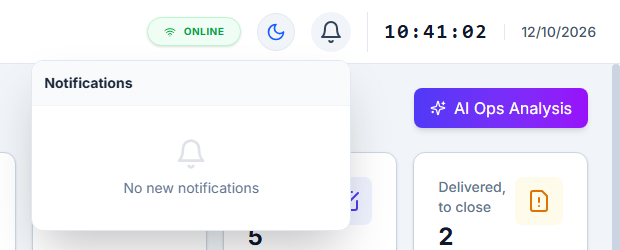
Click the bell to open the Notifications panel. Click a notification to open the shipment or the task. Press Mark all read to clear the badge.
2.5 Reminders
When a task or an event with a reminder becomes due, a reminder window appears at the top right of the screen, whatever screen you are working on.
| Button | What it does |
|---|---|
| Done (tasks) / OK (events) | Completes the task, or closes the reminder of the event. |
| Open | Opens the task or event. |
| 15 min / 1 hour | Shows the reminder again later (snooze). |
| X | Hides this reminder. |
At most five reminders are shown at the same time; the rest are counted as +N more reminders. Reminders older than three days are not shown.
2.6 New mail
If you use Web Mail (chapter 10), JetLogix checks your mailbox every 90 seconds. A new message is announced at the bottom right of the screen with the sender and the subject. Click the notice to open the message.
2.7 Signing out
Press Sign Out at the bottom of the menu. Your session also ends automatically when it expires (see Remember me) or when an administrator changes your password. In that case JetLogix returns to the sign-in screen with the message Your session has expired. Please sign in again.