 JetLogix
8 Tasks
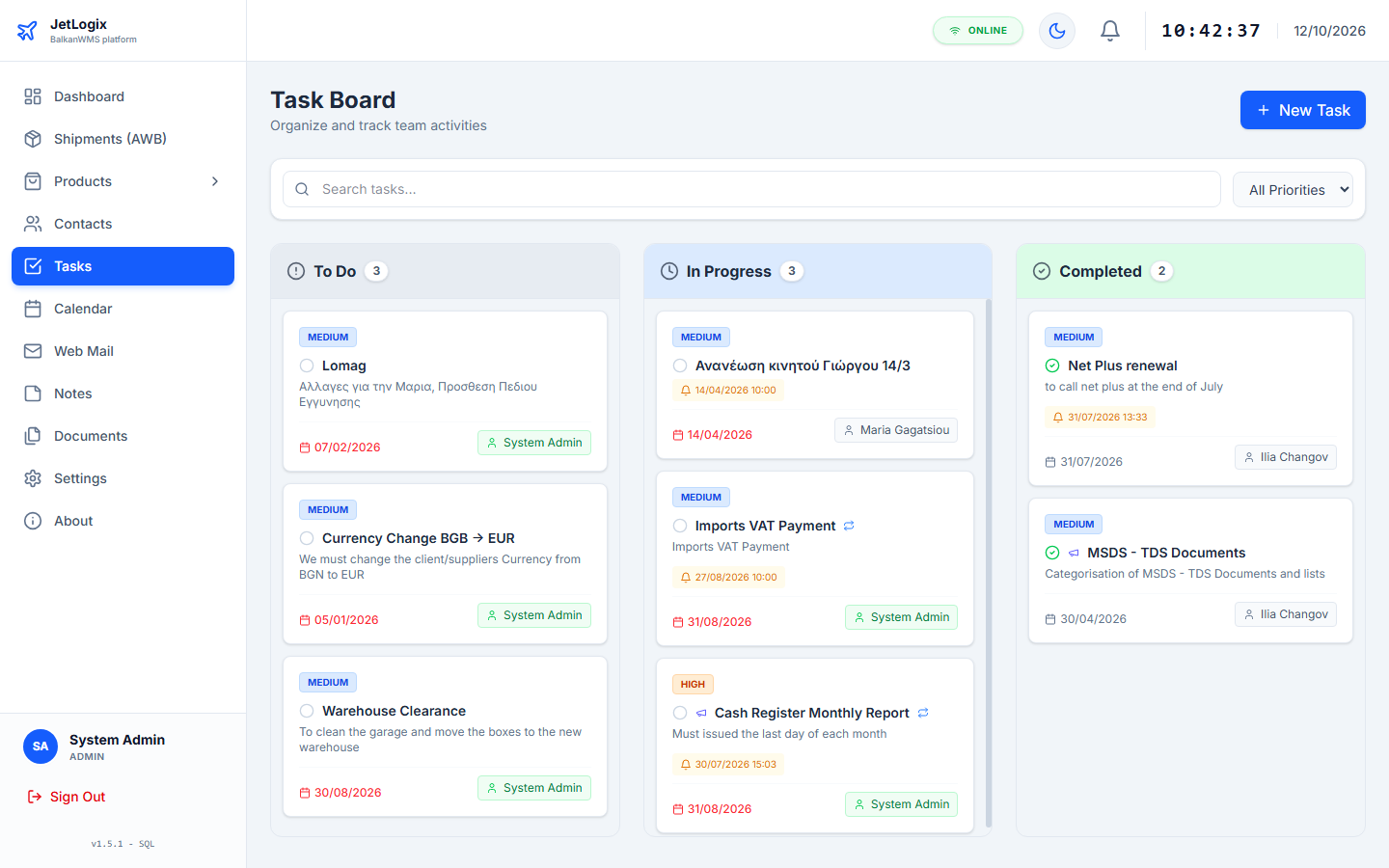
The Task Board organises the work of the team. Tasks move through three columns: To Do, In Progress and Completed.
8.1 Which tasks you see
| You are | You see |
|---|---|
| A standard user or manager | Tasks assigned to you, tasks that are not assigned to anybody, and public tasks. |
| An administrator | All tasks. |
Use Search tasks... and All Priorities at the top to find a task.
8.2 The task card
Every card shows:
- the priority (Low, Medium, High, Urgent);
- the title and the description;
- the due date (in red when overdue), the reminder, who created the task and who it is assigned to (your own tasks are shown in green, Unassigned when nobody is responsible);
- a megaphone for public tasks and circular arrows for repeating tasks;
- Open note for tasks created from a note (chapter 11).
Point at a card to show the edit and delete buttons. Press the circle at the left of the title to mark the task as completed.
8.3 Creating a task
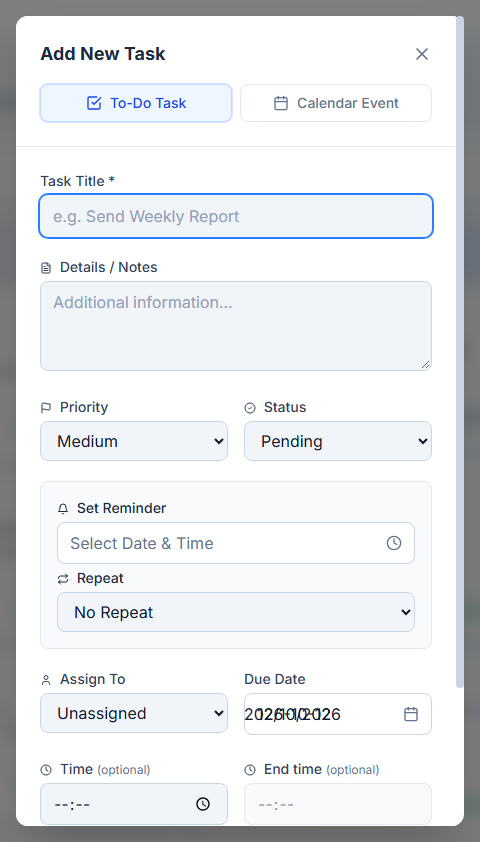
- Press New Task.
- Leave the type on To-Do Task.
- Fill in the Task Title and, if needed, Details / Notes.
- Choose the Priority and the Status.
- Choose the colleague in Assign To, or leave Unassigned.
- Set the Due Date and, optionally, the Time.
- Optionally set a reminder in Set Reminder (date and time) and a repetition in Repeat.
- Tick Public Announcement to show the task to everybody.
- Press Create Task.
Note: Saved tasks also have a Comments panel: comment and mention colleagues with
@ as described in section 4.9.8.4 Repeating tasks
Set Repeat to Daily, Weekly or Monthly for work that comes back regularly, for example a weekly report.
- When you complete a repeating task (with the circle, Done in the reminder or Done, next date in the form), JetLogix records the completion and moves the task to its next date, back in To Do. The reminder moves with it.
- The form shows Last completed: <date> by <name>.
- A monthly task keeps its day of the month; a task on the last day of a month stays on the last day.
8.5 Events
Events are appointments that appear in the Calendar (chapter 9) but not on the Task Board.
- Press New Task (or + Event in the Calendar).
- Choose Calendar Event.
- Fill in the Event Title, the Event Date and, optionally, the Start time and End time.
- Tick Public Event (Visible to All) to show it to everybody.
- Press Create Event.
The end time must be after the start time.